Editing basics
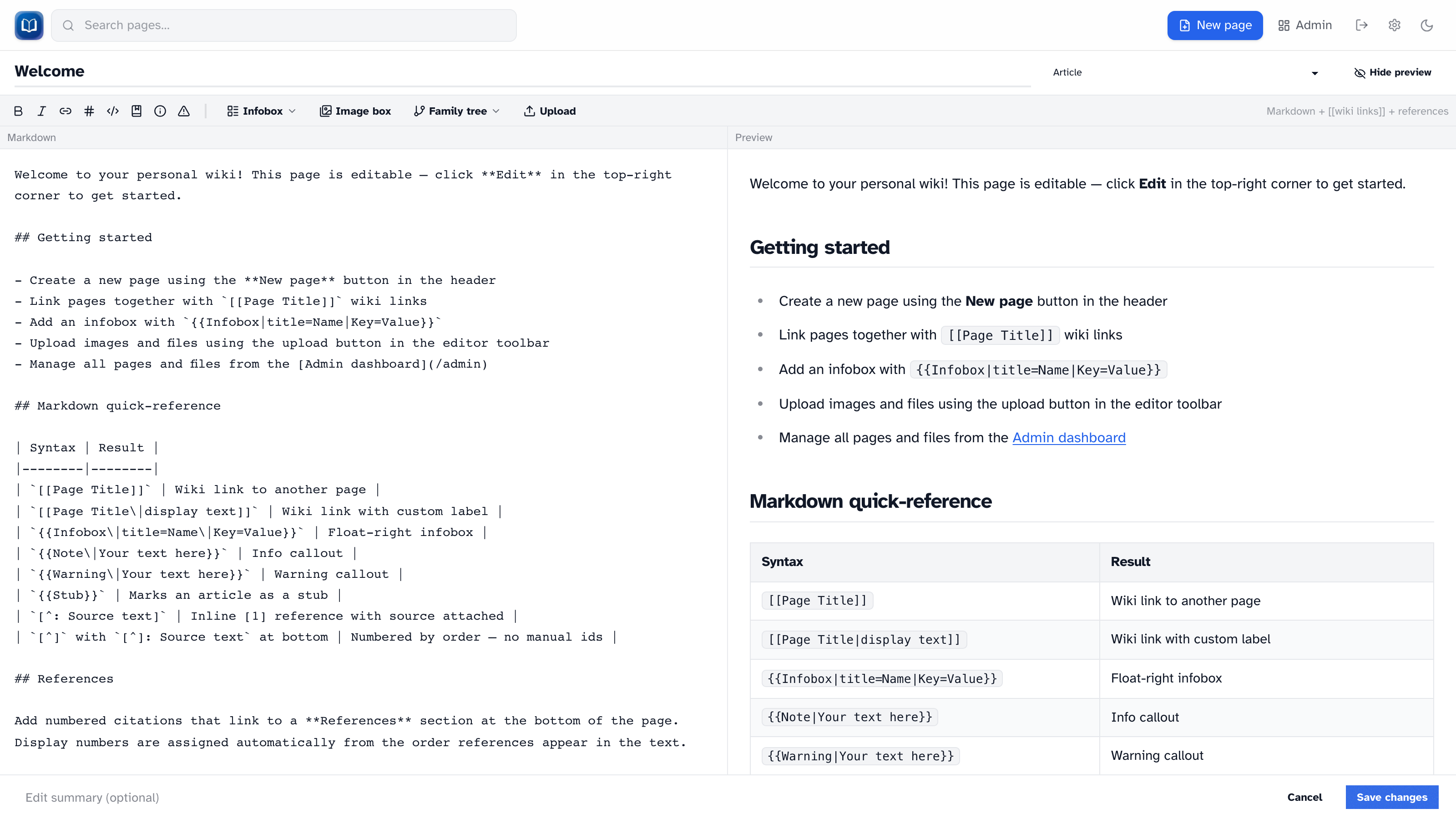 The editor with markdown source, live preview, toolbar, and infobox panel.
Ways to create a page
| How | Where |
|---|---|
| New page button | Header (signed in) |
| Red wiki link | Click a [[Page Title]] link to a page that doesn't exist yet |
| Search | Create "[query]" when search finds nothing (signed in) |
| Admin | Admin → Pages → New page |
The editor
You'll see a split view:
- Left — markdown source
- Right — live preview (updates as you type, no server round-trip)
Toggle preview with the button in the toolbar. On desktop, preview starts open. Your preference is remembered in the browser.
Fields
| Field | Purpose |
|---|---|
| Title | The name shown at the top of the page |
| Namespace | article (normal), template, or help |
| Edit summary | Short note about what you changed (optional, shows in history) |
| Content | The markdown body |
New pages get an address like /wiki/my-page based on the title you enter.
Toolbar
Quick inserts for formatting, wiki links, references, callouts, infoboxes, image boxes, uploads, and family trees (when the extension is enabled).
Tab key
Press ++Tab++ in the markdown pane to indent. ++Shift+Tab++ outdents.
Saving and canceling
Save publishes your changes and adds a revision to history.
Cancel returns to the article without saving.
If you've typed anything, the editor warns you before navigating away or closing the tab.
Edit conflicts
If someone else saved while you were editing, the editor shows a conflict banner with two choices:
- Reload latest — discard your draft and load their version
- Overwrite with mine — keep your draft and replace what’s on the server
Editing an existing page
Open the article and click Edit (signed in). The editor loads the current title and content.
Namespaces
| Namespace | Use |
|---|---|
article |
Normal wiki pages — searchable, listed on /pages |
template |
Reusable {{TemplateName}} blocks |
help |
Help content (the built-in /wiki/help page uses this) |
Most pages should be article.