User management
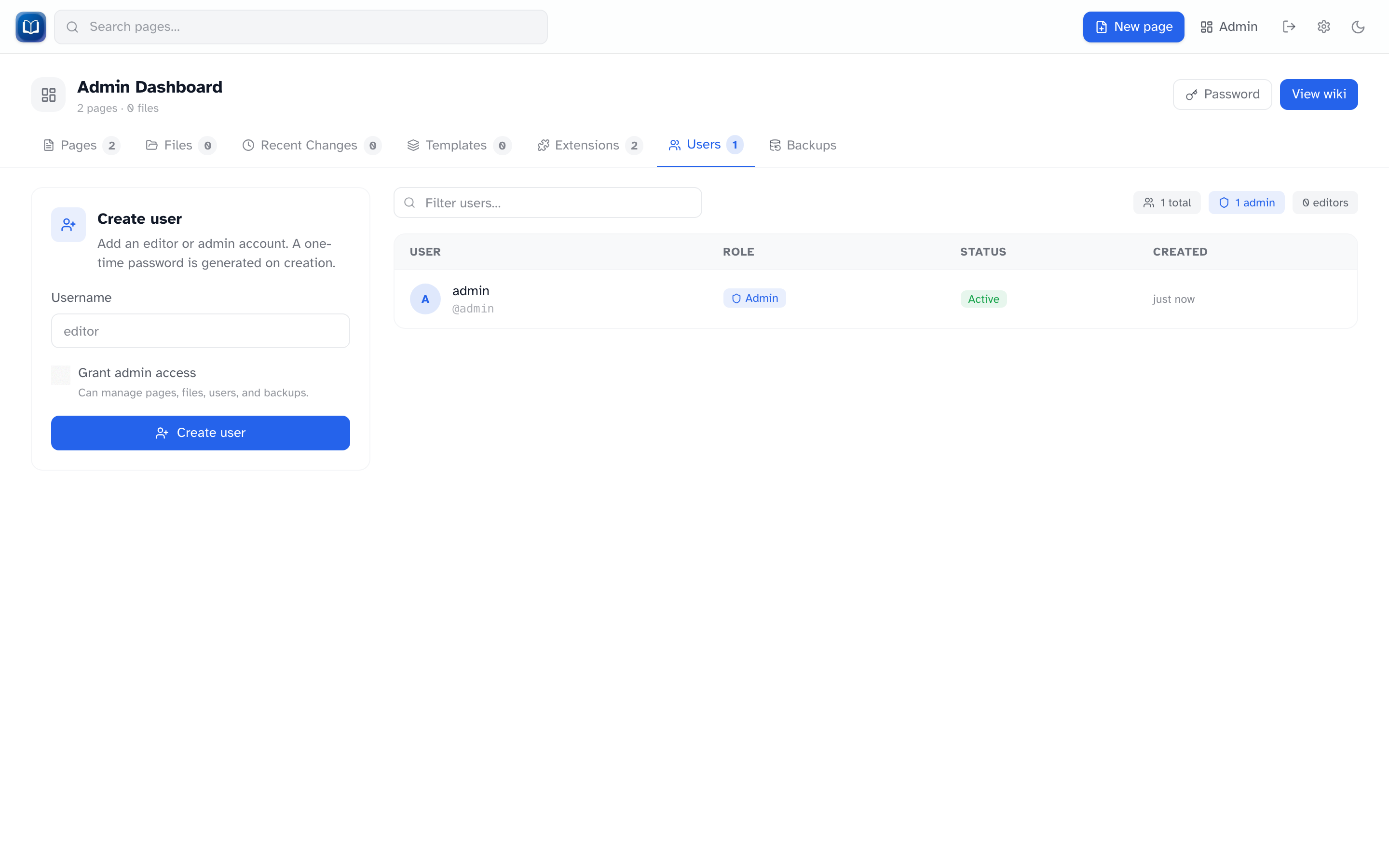 Create accounts and manage roles from Admin → Users.
Admins manage accounts under Admin → Users.
Creating a user
- Go to Admin → Users
- Enter a username (letters, numbers, underscores, hyphens)
- Check Admin if they need dashboard access
- Click Create user
A one-time password appears on screen. Copy it with the button — it won't be shown again. Send it to the new user securely.
They must change that password on first login.
User list
| Column | Meaning |
|---|---|
| Username | Login name |
| Role | Admin or Editor |
| Must change password | Waiting on first-login password change |
| Created | When the account was made |
| Actions | Promote / demote, or delete |
Roles
- Editor — can edit pages, upload files, use extensions
- Admin — all of the above, plus the admin dashboard
Use Promote / Demote in the actions column to change a role. You can’t demote or delete the last admin, and you can’t delete your own account.
Deleting a user
Click the delete button next to the user and confirm. Their sessions end immediately.
If someone loses their password
Ask whoever hosts the wiki to reset it from the shell:
That prints a new temporary password. List accounts with --list. Locally: bun run reset-password -- <username>.
Tips
- Only make someone an admin if they need to manage users, backups, or extensions
- Usernames can't be changed after creation